wayland-compositor-bench, is better GNOME 51 or LabWC + Noctalia ?

Every Wayland session has a compositor. It composites the windows, routes input, applies effects such as blur, and decides when a frame reaches the screen. It runs the whole time you are logged in. We pick one, then argue about which is better, often without a single number.
wayland-compositor-bench is a small Rust tool that fixes that. It measures the compositor you are actually running, in the session you are actually logged into, and turns the cost into six numbers you can compare.
The short version: the numbers are useful, but they are also easy to misread, and the tool is unusually honest about that. A desktop environment is more than its compositor, so the comparison below says exactly which process each number covers.
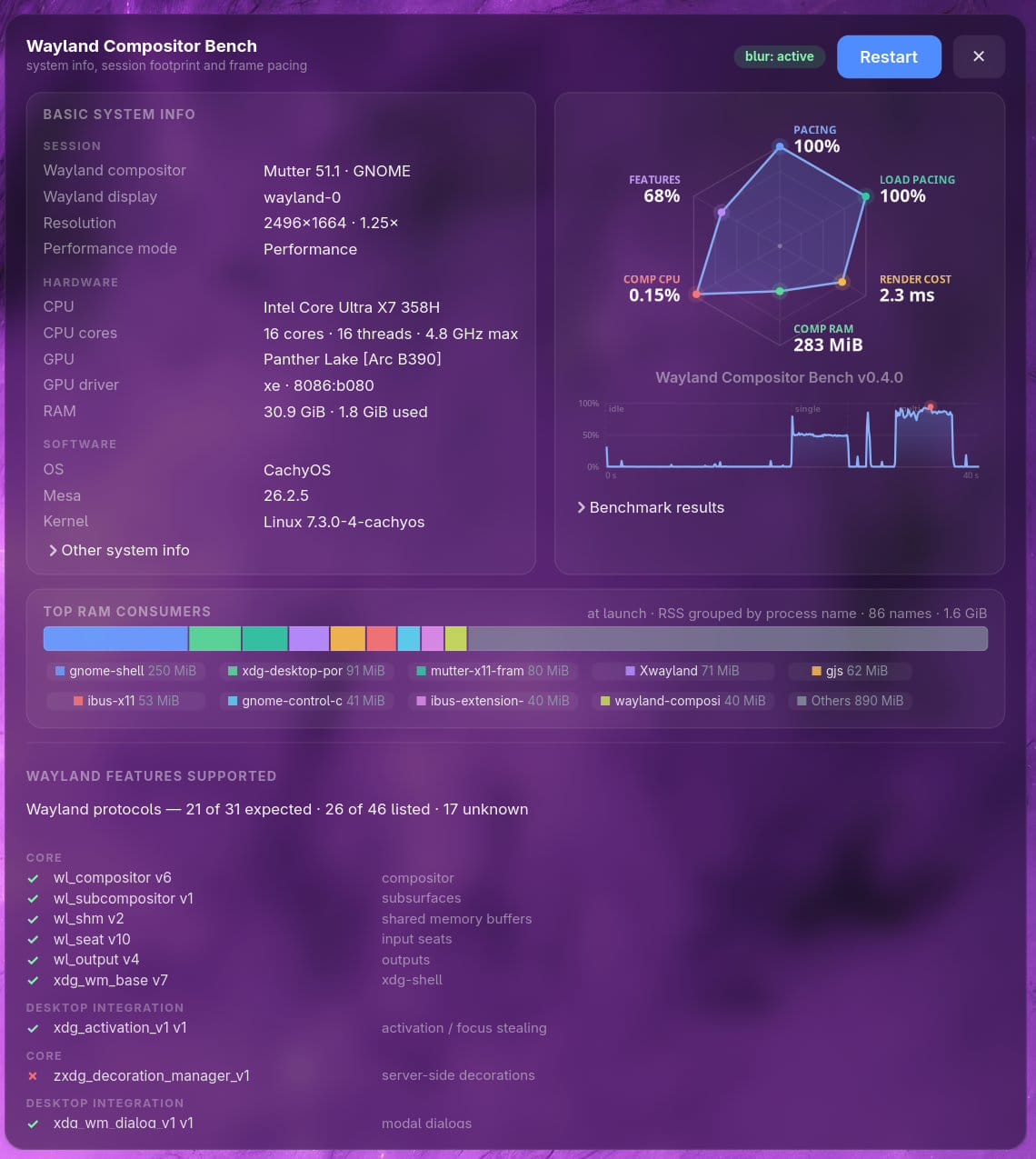
What the project does
The tool is one binary. There is no helper daemon, no Python layer, and no compositor patch. It reads /proc, the session's cgroup v2 and sysfs, so every figure has a source you can inspect.
It measures the real session, not a nested test compositor. Your apps and configuration are part of the measurement, and the session cgroup decides which processes count. That is the point. A nested compositor is easy to control and tells you very little about the desktop you actually use.
A run goes through a fixed sequence:
- Resolve the session cgroup and the compositor process. The compositor is the process that owns the listening
WAYLAND_DISPLAYsocket, not whateverXDG_CURRENT_DESKTOPhappens to say. - Scan the Wayland registry and probe blur support.
- Wait for the session to settle, so lazy services and startup work do not land in the middle of the measurement.
- Measure the idle session for 20 seconds by default: session and compositor CPU, compositor PSS, wakeups, and power.
- Run the single-surface frame test for 6 seconds. The workload is a small animated Cairo strip in the benchmark window.
- Open extra animated windows, six by default, wait for them to settle, and measure the memory delta.
- Run the multi-surface frame test for 6 seconds. This is the "real desktop" case: several surfaces repainting at once.
- Close the extra windows, measure what memory came back, print the summary, draw the radar, and optionally write a JSON result.
The benchmark window is a real client, and it counts toward the compositor's cost. That is deliberate. The only way to measure how a compositor handles a frame is to give it a frame to composite. The tool reports the client's own CPU per frame separately, so you can see whether the benchmark itself was the bottleneck.
The window shows more than the radar:
- a CPU timeline with phase marks, so you can see when the session got busy
- a
TOP RAM CONSUMERSbar, grouped by process name - every Wayland protocol the compositor advertises, with its version
- a blur chip that reports and toggles
ext-background-effect-v1
The JSON keeps the raw material: the 100 ms CPU series, the phase marks, the protocol snapshot, the display context, the config hash, and every check behind the confidence level.
The main commands are simple:
wayland-compositor-bench --check          # can this session be measured?
wayland-compositor-bench --run --json     # measure, save the result, exit
wayland-compositor-bench --report         # medians of saved runs
wayland-compositor-bench --compare labwc gnome
Why it matters
A compositor is a fixed cost. Idle CPU and memory are paid all day. CPU per frame is paid every time anything moves. On a laptop that turns into battery drain, heat and fan noise. On a desktop it turns into headroom for everything else.
Most desktop benchmarks do not measure this. They measure a synthetic scene in a controlled environment, or they measure the whole session and call it "the desktop". This tool separates the pieces:
- compositor CPU and memory
- the benchmark client's CPU
- other session CPU
- GPU time for the compositor and the client
- platform power (RAPL
psys, the best battery proxy on this laptop)
That attribution matters. Without it, a slow app looks like a slow compositor, and a busy background process looks like a desktop that cannot idle.
The tool is also careful about claims. It does not produce a single score. Every run carries a confidence level, high, medium or low, derived from checks stored in the JSON. --compare accounts for the observed run-to-run spread and refuses to call a difference smaller than the noise. Missing data is null, not zero. The README recommends three runs per compositor because the difference between identical runs is often bigger than the difference you are chasing.
That honesty is the most important feature. It is easy to produce a chart that says one desktop is 4% better. It is much harder to produce one that tells you whether 4% means anything.
The tool does not measure everything. It does not measure input-to-photon latency, GPU utilisation percentage, games, WebGL, video, HDR, VRR, multi-monitor behaviour, or the cost of XWayland. It measures the compositor's attributable cost with the built-in workloads. That is a narrower claim, and a more useful one.
The six labels
The radar has six axes. Each one answers a practical question about the session you are running. Every axis is drawn so that further out is better, including the cost axes, where the raw number is better when it is lower. The absolute number is printed at the vertex; that number, with its unit, is what you quote. The shape is a fingerprint of trade-offs, not a score.
| Label | The question it answers | Number at the vertex | Further out means | What it means for you |
|---|---|---|---|---|
PACING |
Did it present every frame on time with one moving surface? | % of frames | Fewer missed frames | Smooth animation and scrolling in the simple case. 100% means no frame was missed at the cadence the compositor settled into. |
LOAD PACING |
Did it stay on time with several windows repainting? | % of frames | Fewer missed frames under load | Smoothness in the messy case: a browser, a terminal and a chat window all updating at once. |
RENDER COST |
How much compositor CPU did each presented frame cost? | ms/frame | Less CPU per frame | Headroom for effects and apps, and less heat, fan noise and battery drain per frame. It is CPU time, not GPU time. |
COMP RAM |
How much memory does the compositor hold at rest? | MiB | Smaller footprint | A fixed memory cost paid all session. It covers the compositor process tree, not separate shell processes. |
COMP CPU |
How busy is the compositor when nothing is happening? | % of one core | Quieter compositor | Idle battery and heat. 0.3% means 3 ms of CPU per second; 100% means one core fully busy. |
FEATURES |
How much of the expected Wayland surface does it advertise? | % of 31 scored protocols | More coverage | A compatibility signal for screen sharing, clipboard, idle handling and similar integrations. Coverage, not quality. |
A one-line reading: the two pacing axes are about smoothness, RENDER COST is about CPU headroom per frame, COMP RAM and COMP CPU are the fixed cost of leaving the desktop running, and FEATURES is about compatibility.
When something feels wrong, start with the matching axis: stutter is PACING or LOAD PACING, heat or fan noise under load is RENDER COST, idle drain is COMP CPU, memory pressure is COMP RAM, and a missing protocol feature such as screen sharing or idle handling is FEATURES.
PACING
This axis asks whether the compositor delivered the frames it had on time, with one animated surface. It counts the frames presented at the cadence the compositor settled into.
The cadence matters more than the panel refresh. If the session settles at 60 Hz on a 120 Hz panel and delivers every frame, that is 100%, not 50%. A stable 60 Hz is a legitimate choice. This axis is about consistency, not raw speed. A compositor that runs at 30 Hz and never misses a frame can still score 100%.
For you, a low score means visible stutter even when only one thing is moving. A high score does not mean the compositor is fast; read the cadence and RENDER COST with it.
LOAD PACING
The same question with the extra animated windows open, six by default. This is the case that looks like a real desktop: several surfaces repainting at once, the way a browser, a terminal and a chat app would. It is often the axis that separates a light compositor from a full desktop, though not always in the direction people expect.
Read it together with the benchmark client's app CPU per frame figure. If the client is close to or above the compositor's CPU per frame, the dropped frames are not all the compositor's fault. The tool reports both, so you can see whether the scene was client-bound.
RENDER COST
This is the compositor's CPU time per presented frame in the load test, in milliseconds. The radar converts it to a share of the frame period at the observed cadence: one frame of compositor work that costs a whole frame period sits at the centre, and work that costs almost nothing sits near the outer ring.
The axis is inverted, so further out means less CPU per frame. The number printed is milliseconds per frame. It is CPU time, not GPU time and not input-to-photon latency. GPU time is reported separately in the details. That distinction matters: a compositor can use little CPU per frame and still keep the GPU busy, or the reverse.
COMP RAM
The compositor's own memory at rest, with the benchmark window open: the PSS of the compositor process and its descendants. PSS splits shared pages between the processes that use them, so a shared library is not counted once per process. That is fairer than adding up RSS.
The number printed is MiB. The axis is logarithmic against the machine's total RAM, so 50 MiB and 1.2 GiB stay visibly apart instead of both hugging the outer ring.
This is not the whole desktop's memory. The session working set is in the details, and it is the number to use for a broader comparison, after checking the cgroup line. It is also not the TOP RAM CONSUMERS bar, which is an RSS snapshot grouped by process name.
If your desktop runs its shell as a separate process outside the compositor's process tree, COMP RAM does not include it. GNOME's shell is part of gnome-shell, so it is inside the compositor tree. labwc is a compositor, and Noctalia is a separate shell process outside that tree, so Noctalia's memory is outside this axis. The JSON records both the compositor PSS and the session working set so you can see the difference.
COMP CPU
How busy the compositor is when nothing is happening. It is the compositor's CPU over the idle window, across all threads, as a share of one core. The axis is logarithmic because the interesting range is small: 0.3% and 3% should not look the same.
The number printed is a percentage of one core. 1% means 10 ms of CPU per second; 100% means a full core. "At rest" still includes the benchmark window, which is a real client, so this is not a zero-client measurement. A high value can come from a helper or driver thread, or from a compositor that keeps redrawing. The thread breakdown and the confidence checks help you tell the difference.
The same shell caveat applies. COMP CPU covers the compositor process tree. Noctalia, or any other panel or notification daemon running outside that tree, shows up in other CPU or the session total, not here.
FEATURES
How much of the expected Wayland protocol surface the compositor advertises. The score covers three tiers:
- Core: things no desktop works without, such as
wl_compositor,wl_shm,wl_seatandxdg_wm_base - Rendering: buffers, scaling and presentation timing, such as dmabuf, viewporter and fractional scale
- Desktop integration: input methods, clipboard managers, window lists, capture and session lock
There are 31 scored protocols. Wlroots-only and optional protocols are listed but not scored, so the number does not reward a design choice. A protocol advertised below its useful version is counted as supported but flagged as stale. The JSON keeps the full list, with versions.
The number is a percentage. It is coverage, not quality. A desktop can provide a feature through a portal or its own interface and still not advertise the protocol the tool expects. Read it as a compatibility signal, not a score for "better desktop".
Why the shape is not a score
Each axis is normalised against the run and the machine, not a fixed ceiling. Pacing is a share of presented frames. Render cost is measured against the frame period. RAM and CPU use logarithmic scales against total RAM and one core. Features is a share of the scored protocol list.
That keeps the shape meaningful on different machines, but it also means the shape is not a score. The tool deliberately has no single number. Any scalar over arbitrary weights can hide the trade-offs behind the number, so you read the axes and decide what matters to you.
GNOME vs labwc + Noctalia on the same laptop
GNOME is a Linux desktop environment. Its compositor is Mutter, which runs inside the gnome-shell process; the shell, the compositor and much of the desktop furniture are one measurement target.
labwc is a wlroots-based compositor and window manager, not a full desktop. Noctalia is a separate shell process that provides the panel, launcher, notifications and similar pieces. Together they mostly recreate a desktop environment, but they are two components from two projects, and only labwc is the compositor the tool measures. That distinction is the key to reading this comparison: it is GNOME the desktop environment against a labwc + Noctalia desktop stack, not two builds of the same thing.
The numbers below come from two saved runs: gnome125.json and labwc125.json. Both were made on the same laptop: an Intel Core Ultra X7 358H with Intel Arc B390 graphics, about 30 GB of RAM, CachyOS, kernel 7.3.0-4 and Mesa 26.2.5.
The run context:
| GNOME 51 | labwc + Noctalia | |
|---|---|---|
| Desktop | GNOME, integrated | labwc plus a separate Noctalia shell |
| Compositor | GNOME Shell 51.1 | labwc 0.20.2-34-g1d2cb20e, wlroots 0.20.2 |
| Display | 2496x1664 logical, 1.25x, 120 Hz | same |
| Power | Performance, on battery, brightness 41/704 | same |
| Blur | on | on |
| Run | 20 s idle, 6 s frames, 6 extra windows | same |
| Confidence | high, every check passed | high, every check passed |
| Cgroup | systemd user manager, 65 processes | login session scope, 8 processes |
That is a much cleaner pair than comparing runs at different scales and power profiles, but it is still one run per desktop, not an interleaved A/B with repeats. "High confidence" means the checks passed, not that one run is statistically enough. The tool recommends three runs per compositor.
The cgroup boundaries also differ. GNOME resolves to the systemd user manager (65 processes) because it runs the compositor as a user service; labwc resolves to the login session scope (8 processes). Both are exact for their desktop, but they do not contain the same set of user services. Keep that in mind for every session total below.
| Axis | GNOME 51 | labwc + Noctalia | What it says |
|---|---|---|---|
PACING |
99.6% (715 presented, 3 dropped) | 100% (718 presented, 0 dropped) | Both used a 120 Hz cadence with one surface. |
LOAD PACING |
99.9% (716 presented, 1 dropped) | 98.7% (709 presented, 9 dropped) | Both used a 120 Hz cadence with six extra windows; labwc missed 9 frames, GNOME 1. |
RENDER COST |
3.1 ms/frame | 3.9 ms/frame | GNOME used less compositor CPU per frame in the load test. |
COMP RAM |
332 MiB PSS | 56 MiB PSS | labwc's compositor process is about 5.9x smaller, but this excludes Noctalia. |
COMP CPU |
0.12% of one core | 0.31% of one core | Both quiet; labwc is about 2.7x higher but still below 0.4%. |
FEATURES |
68% (21/31) | 94% (29/31, 1 stale) | labwc advertises more of the scored list; GNOME may use portals. |
Outside the radar: the measured session working set (anonymous plus shared memory) is 359 MiB for GNOME and 145 MiB for labwc, and idle psys power is 1.28 W and 1.34 W (battery 4.79 W and 4.76 W). The session totals have different cgroup boundaries, so treat them as context, not a clean A/B.
Memory: a much smaller compositor, a murkier desktop gap
The compositor PSS is 332 MiB for GNOME and 56 MiB for labwc, about 5.9x smaller, or roughly 276 MiB less. That difference is real for the process the tool measures. GNOME Shell is a full shell: a JavaScript runtime, search, notifications, the overview, and Mutter underneath, all in the compositor process. labwc is a compositor and window manager, and it does less.
But the two numbers do not cover the same product. GNOME's shell is inside gnome-shell, so its memory is in the 332 MiB. Noctalia is a separate process, so its memory is not in labwc's 56 MiB. The session working set gives a broader view: 359 MiB for GNOME against 145 MiB for labwc, about 2.5x. That is still not a clean desktop-to-desktop ratio, because the GNOME cgroup includes the systemd user manager and its services, while the labwc cgroup is the login session and excludes user services that both desktops use. Noctalia's own PSS is also not broken out, so the JSON cannot say how much of that 145 MiB it accounts for.
So the honest version is: labwc's measured footprint is much smaller, and its measured session working set is smaller too, but "the labwc desktop uses 2.5x less RAM" is not a claim these two JSONs support. The missing pieces are Noctalia's share and the user services outside labwc's cgroup. The compositor-only 5.9x is precise, and precisely narrower than "the desktop".
Pacing: both hit 120 Hz, and the difference is small
Both runs settled at 120 Hz. GNOME presented 715 frames on the single-surface test and dropped 3 (99.6%), and presented 716 under load and dropped 1 (99.9%). labwc presented 718 on the single test and dropped none (100%), and presented 709 under load and dropped 9 (98.7%). The radar rounds GNOME to 100% on both axes, and labwc to 100% and 99%, but the raw counts are more useful.
That is not a meaningful win for either side in a single run. The load difference is 8 frames over 6 seconds. The p95 frame interval is 8.34 ms in both runs. The maximum interval is 16.7 ms for GNOME and 41.7 ms for labwc, so labwc had the longest single stall, but one maximum is a fragile statistic. The benchmark client was heavier in the labwc run (5.85 ms/frame against 4.54 ms), though not saturated; the compositor was not the only work in the frame.
Read this as "both held 120 Hz in this run", not "GNOME has better pacing". The pacing axis deliberately measures against the cadence each compositor settled into, so it is about consistency, not raw frame rate.
Render cost: a mixed result, not a rout
The radar uses the load test. There, GNOME costs 3.1 ms of compositor CPU per frame and labwc 3.9 ms. At 120 Hz the frame budget is 8.33 ms, so that is roughly 37% against 47% of a frame spent in the compositor. GNOME uses about 22% less compositor CPU per frame than labwc in this scene, but both vertices are still well outside the centre.
The single-surface test flips the result: labwc costs 1.03 ms/frame against GNOME's 2.70 ms. With one window, labwc's compositor is lighter; with six extra animated windows, GNOME's is. The load test is the axis the radar plots because it is closer to a busy desktop, but it is not the whole render story.
GPU time adds another dimension. Under load, compositor GPU time is 0.89 ms/frame for GNOME and 4.72 ms/frame for labwc. That fits the higher psys power in the labwc load test (27.5 W against 14.1 W), but GPU time is not part of RENDER COST, and a six-window stress scene is not a typical workload. This is a place to re-measure, not a place to declare a winner.
Idle CPU: both are quiet, and the battery agrees
At rest, GNOME uses 0.12% of one core and labwc 0.31%, a factor of 2.7. Both are small: 0.31% is about 3 ms of CPU per second. The radar's log scale makes the difference visible, but this is not a compositor burning a core while it idles.
The shell split matters here too. Noctalia is outside the compositor tree, and the quiet cpu check names it at 0.3%. The whole session CPU is 0.87% for GNOME and 1.39% for labwc, again with different cgroup boundaries. Idle psys power is 1.28 W against 1.34 W, and battery draw is 4.79 W against 4.76 W. In this run, the extra compositor CPU did not turn into a measurable idle battery difference.
Features: labwc advertises more, GNOME may not need to
GNOME scores 68%, 21 of 31 scored protocols. It advertises 26 of all 46, plus 17 protocols outside the reference list. labwc scores 94%, 29 of 31, with one stale version (wp_cursor_shape_manager_v1 v1, below the useful v2). It advertises 43 of all 46, plus 15 outside the reference list.
The missing pieces are instructive. labwc is missing wp_primary_selection_device_manager_v1 and wp_idle_inhibit_manager_v1. GNOME is missing ten scored protocols, including server-side decorations (it uses client-side decorations by design), primary selection, clipboard managers, the new window-list and workspace protocols, image capture, idle notification and inhibit, and session lock. That does not mean GNOME cannot do those things. Screen capture, idle handling and session locking can go through xdg-desktop-portal, GNOME's own D-Bus interfaces or the shell. The tool scores what the compositor advertises, not what the desktop can do through another door.
So labwc's higher coverage is a real advantage for clients that expect those globals, and a real difference in how the two stacks expose themselves. It is not proof that labwc is a better desktop. Coverage is not quality.
So who wins?
It depends on the question, and sometimes the answer is "not enough data".
- If you want the smallest compositor process, labwc wins clearly: 56 MiB against 332 MiB. Its measured session working set is also smaller, 145 MiB against 359 MiB, but the cgroup boundaries and Noctalia's unmeasured share make the desktop-level ratio uncertain.
- If you want smooth 120 Hz in this run, it is a tie: 99.6%/99.9% for GNOME and 100%/98.7% for labwc.
- If you want the lowest compositor CPU per frame in the load test, GNOME wins, 3.1 ms against 3.9 ms. With one surface, labwc wins, 1.03 ms against 2.70 ms.
- If you want the quietest idle compositor, GNOME wins on the axis, 0.12% against 0.31%, but both are small and idle battery draw was the same within noise. Noctalia adds another 0.3% outside the axis.
- If you want protocol coverage, labwc wins, 94% against 68%, with the portal caveat.
There is no overall winner, and that is the point. The tool refuses a single score because the trade-offs are real. GNOME is an integrated desktop environment: the shell runs inside the compositor process, and the user manager holds the session services. labwc + Noctalia is a compositor plus a separate shell, assembled from two projects. It is smaller and advertises more of the raw protocol surface; GNOME does more inside the compositor and may expose some of those features through portals instead. Which one you want depends on what you value, and the numbers only make sense with those boundaries attached.
The next step is not another chart. It is three runs per stack, with Noctalia's PSS measured separately and a matched session scope, so the desktop-level memory and idle numbers can be compared without an asterisk.
How to make a fair comparison
If you want to compare two compositors yourself, the context matters as much as the tool:
- Same output, refresh and scale. Idle power and memory scale with pixels and Hz. A 60 Hz and a 120 Hz run are not the same measurement, and neither are a 1.25x and a 2.0x run.
- Same power state. On battery, discharging, same platform profile and brightness. Plugging in changes both the drain and the thermals.
- Clean session. Close heavy apps. The tool flags processes over 150 MiB and CPU outside the compositor and itself.
- Same blur state. Blur is real compositor work. The chip is recorded in every JSON, and reports warn when a label mixes blur on and off.
- Compare like with like. GNOME is an integrated desktop environment: the shell runs inside the compositor process, so
COMP RAMandCOMP CPUinclude it. labwc is a compositor, and Noctalia is a separate shell process, so those axes cover only labwc. Say which pieces each number includes, and never compare a compositor-only figure with a whole desktop. - Measure the whole desktop, too. Session working set and session CPU are broader, but check the cgroup line first: GNOME's user-manager scope and labwc's login-session scope do not hold the same services. The JSON records the path and process count for a reason.
- Three runs, then
--compare. The tool accounts for the observed spread and refuses to call a difference smaller than the noise.
The commands are:
wayland-compositor-bench --check
wayland-compositor-bench --run --json --label labwc
wayland-compositor-bench --report
wayland-compositor-bench --compare labwc gnome
The label defaults to the desktop the running compositor belongs to. Results land in $XDG_STATE_HOME/wayland-compositor-bench/results/, or wherever --json FILE points.
Try it
Tagged releases ship a Linux binary, an Arch package and a Debian package. You can also build from source with Rust 1.92 or newer and GTK 4.16 or newer:
git clone https://github.com/grigio/wayland-compositor-bench
cd wayland-compositor-bench
cargo build --release --locked
Then run --check first. It tells you whether the session cgroup, RAPL power, schedstat, PSI and the compositor process are readable, and it names the fix when they are not.
The useful question is not "which compositor is best?" It is "what does this desktop stack cost me, on this machine, in this session, and which parts of it does the number include?" wayland-compositor-bench gives you the numbers to answer that, and it is honest about what it does not know. That is a good place to start.
The project is GPL-3.0-only. The code, the design document and the issue tracker are at github.com/grigio/wayland-compositor-bench.