Troubleshooting Linux RAM and CPU Issues: A Practical Guide. ram-compare

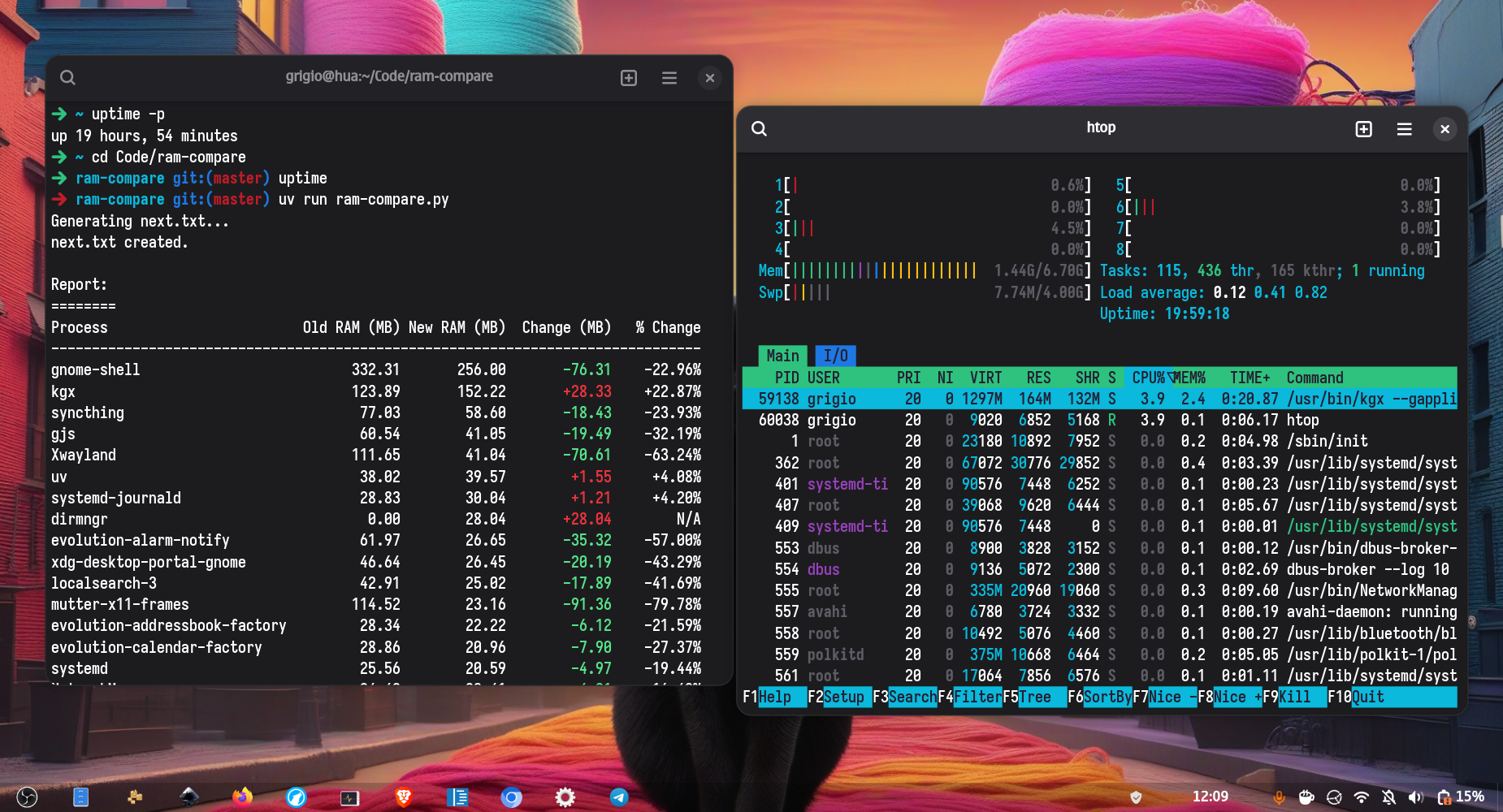
You've just installed Linux with a clean GNOME desktop, and everything seems perfect - RAM usage hovers around 1GB, and the system feels responsive. But then you start customizing: Dash-to-panel, Syncthing, ydotoold, and various GNOME extensions. Suddenly, things go wrong:
gnome-shellconsistently consumes 20% CPU even when idle- RAM usage steadily climbs over time
- Your once-snappy system starts feeling sluggish
The Investigation: Creating a Diagnostic Tool
When faced with these symptoms, it's easy to blame the operating system itself. However, the real culprit is often hiding in plain sight - one of the extensions or background services you've added.
To track down the issue, I developed ram-compare, a simple tool that:
- Takes a snapshot of RAM usage at system startup
- Allows you to run it again after some time
- Shows you exactly what processes have changed their memory consumption
The Discovery: "Blur my shell" Extension
After running the comparison tool, the culprit became clear: the "Blur my shell" GNOME extension was consuming excessive resources. This seemingly innocent visual enhancement was:
- Causing
gnome-shellto spike CPU usage during idle periods - Leaking memory over time, leading to gradual RAM growth
- Impacting overall system performance
The Solution: Extension Management
Once identified, the fix was straightforward:
- Disable the problematic extension
- Monitor system behavior
- Enjoy restored performance
Lessons Learned
1. Extensions Matter
GNOME extensions run with the same privileges as the shell itself. A poorly coded extension can significantly impact system performance.
2. Monitor Changes
Keep track of what you install and when performance issues start appearing. This correlation is crucial for troubleshooting. Distrohopping isn't a solution!
3. Use Diagnostic Tools
Tools like ram-compare help you identify the specific processes causing issues rather than guessing.
4. Start Simple
Begin with a minimal setup and add components one at a time. This makes it easier to identify the source of problems.
Prevention Tips
- Research extensions before installing them
- Monitor system resources regularly using tools like
htop,gnome-system-monitor - Keep extensions updated - newer versions often fix performance issues
- Test in a VM before deploying on your main system
- Document changes to track what might be causing issues
Conclusion
Linux is incredibly customizable, but that flexibility comes with responsibility. By being methodical about what you install and having the right diagnostic tools, you can enjoy a highly customized desktop without sacrificing performance.
The key takeaway: when your Linux system starts acting up, don't blame the distro - blame your extensions!